How to Let Customers Build Their Own Bundle on Shopify

To let customers build their own bundle on Shopify, you set up a product with selectable steps, define how many items a shopper must pick per step, and choose how the bundle is priced. Shopify's own Bundles feature handles the underlying data — real components tracked on the real order — while an app like Biscuits Bundles handles the actual customer-facing builder: the steps, the rules, and the pricing logic. This guide covers what a build-your-own bundle actually is, why the Shopify-native approach matters for fulfilment, a practical walkthrough using Biscuits Bundles, and the pricing models worth knowing before you set one up.
Contents
- What a build-your-own bundle is, and the stores it suits
- The Shopify side: native product bundles, and why real components matter for inventory and fulfilment
- Walkthrough: setting up a build-your-own bundle with Biscuits Bundles
- Pricing options worth covering: fixed price, percentage off, sum of products, volume tiers
- FAQ: build-your-own bundles on Shopify
- References
What a build-your-own bundle is, and the stores it suits
A build-your-own bundle lets the shopper choose which products go into a set, inside limits you define — rather than buying a fixed, pre-assembled group. Instead of "here's our gift set," it's "pick 6 items from this list, minimum 4, maximum 8." The shopper feels like they're getting exactly what they want, and you get the AOV lift of a bundle without discounting your whole store to get there.
This model suits stores where variety is the actual product: snack and food brands running "mix your own" boxes, beauty and wellness brands offering discovery kits, and gifting brands letting customers build a hamper. It also works for any catalogue where pairing a slower-moving item with a bestseller inside a bundle helps move both.
The Shopify side: native product bundles, and why real components matter for inventory and fulfilment
Shopify has a native Bundles feature built into the platform itself — merchants can create fixed bundles and multipacks for free, on any plan, without any app. It has real limits worth knowing: up to 30 components for a fixed bundle (150 for a dynamic bundle), a maximum of 3 options and 100 variants per bundle, and it only works through Online Store or a custom storefront — not Shopify POS. It also doesn't support mix-and-match selection on its own. (Note: these exact component/variant caps were sourced from a third-party review citing Biscuits' limitations article, not confirmed directly against the primary Shopify dev docs page — worth a quick sanity check with Anthony.)
This is the part that matters most for fulfilment: when a bundle app builds on top of Shopify's native Bundles data model — rather than creating its own separate SKU to represent the bundle — the individual products inside stay real, individually tracked line items on the actual order. That's the difference between a bundle that "just works" at pack time and one where your warehouse team is manually figuring out what a mystery SKU was actually supposed to contain. Biscuits Bundles is built specifically on top of Shopify's native Bundles feature for this reason — it inherits Shopify's own inventory tracking rather than layering something separate on top.
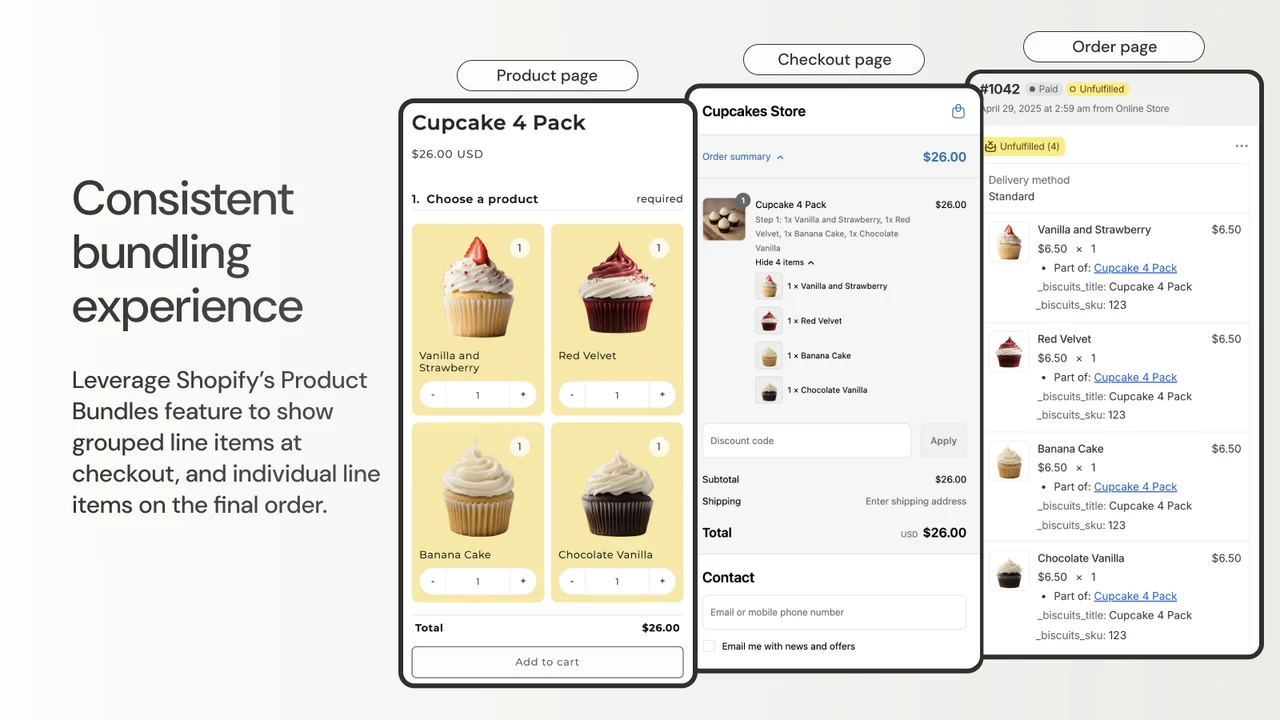
Walkthrough: setting up a build-your-own bundle with Biscuits Bundles
Before installing, confirm your store meets a few requirements: an Online Store 2.0 theme with app block support, the Online Store sales channel or a custom storefront, and Shopify's standard checkout with no checkout.liquid customizations. Biscuits Bundles doesn't currently support Shopify POS, subscription products, or purchase options like pre-order — these are limitations inherited from Shopify's own native Bundles feature, not something Biscuits chose to leave out.
Step 1 — Install and add the app block
Install Biscuits Bundles from the Shopify App Store, then add the app block to your product page template through the theme editor. This step is code-free — you're placing a block, not editing theme files.
Step 2 — Create your bundle and set up steps
Inside the app, create a new bundle. Each bundle is built from one or more "steps" — a step is a group of products the shopper picks from. For each step, you set a title, a description, and whether the step is required.
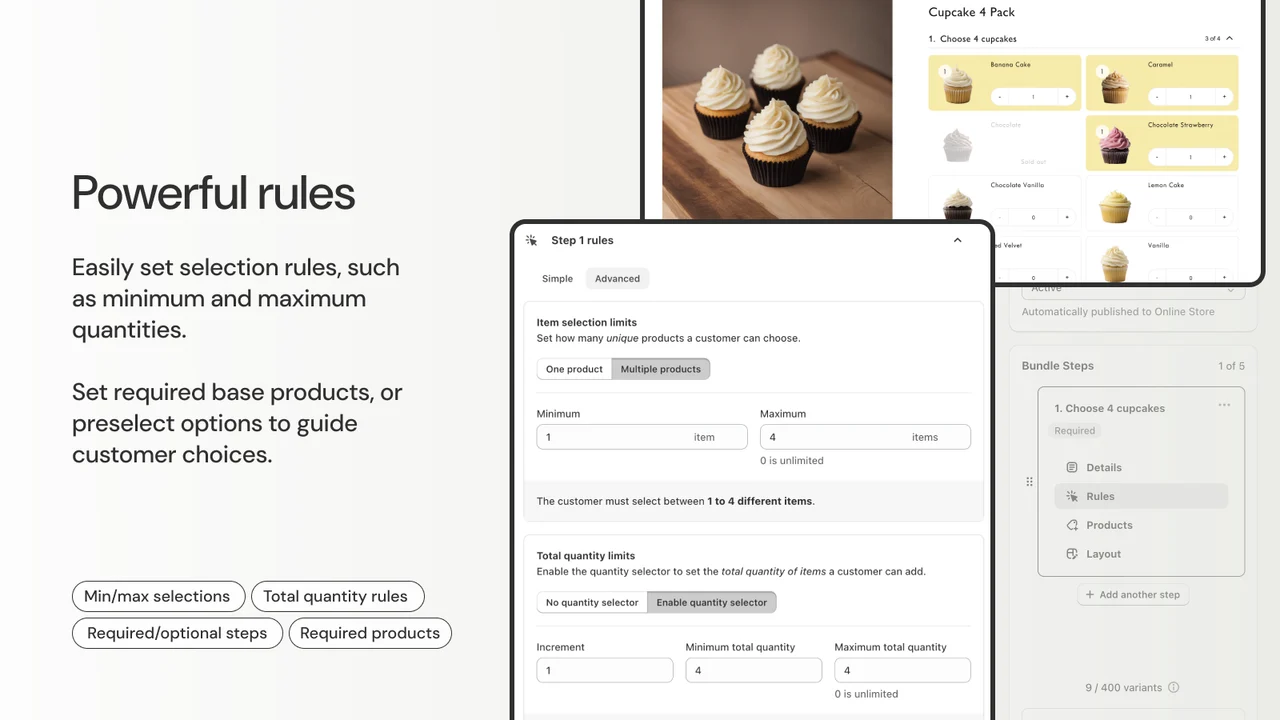
You then choose a selection type per step: Single (the shopper picks exactly one item) or Multiple (the shopper picks a range, defined by a minimum and maximum). Setting the maximum to 0 means no upper limit. There's an important distinction here worth understanding: item selection limits control how many unique products a shopper can pick, while total quantity limits control the total number of items across those picks — the two aren't the same thing, and mixing them up is a common setup mistake.
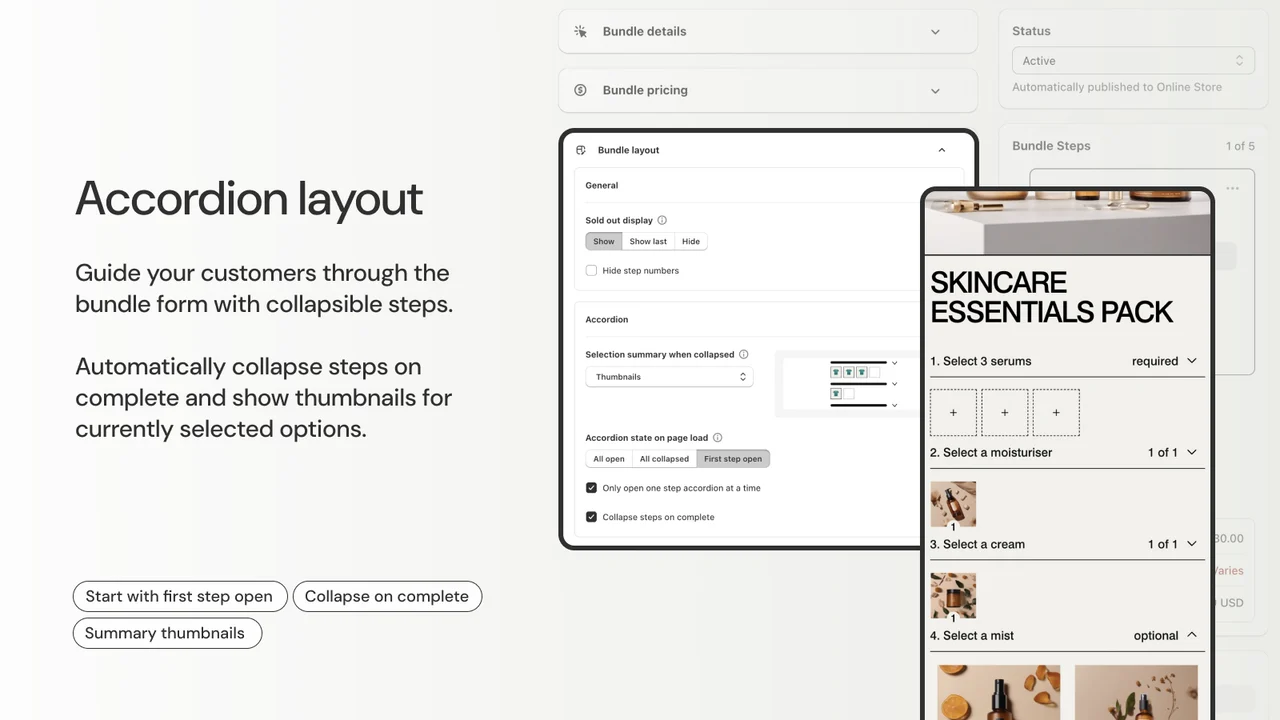
On Standard and Advanced plans, you can also set preselected products (items chosen automatically on page load, which shoppers can still remove) and required products (items shoppers must keep in the bundle and can't deselect).
Step 3 — Select eligible products per step
Use the resource picker to choose which products or variants a shopper can pick from within each step. You can display products either as product cards (a single card with a variant dropdown) or variant cards (a separate card for every variant) — the right choice depends on whether variant differences matter enough to shoppers to warrant their own visual card.
Step 4 — Pick a pricing model
This is covered in full detail in the next section, but the short version: you choose your pricing type in the app's Bundle Pricing area before publishing.
Step 5 — Publish
Set the bundle to Active (or leave it in Draft while you're still testing), review the pricing summary in the sidebar, and save. Click "Edit in Shopify admin" to open the new bundle product directly in Shopify — this is also where you should add a product image, since Biscuits recommends this for how the bundle displays on collection pages.
Pricing options worth covering: fixed price, percentage off, sum of products, volume tiers
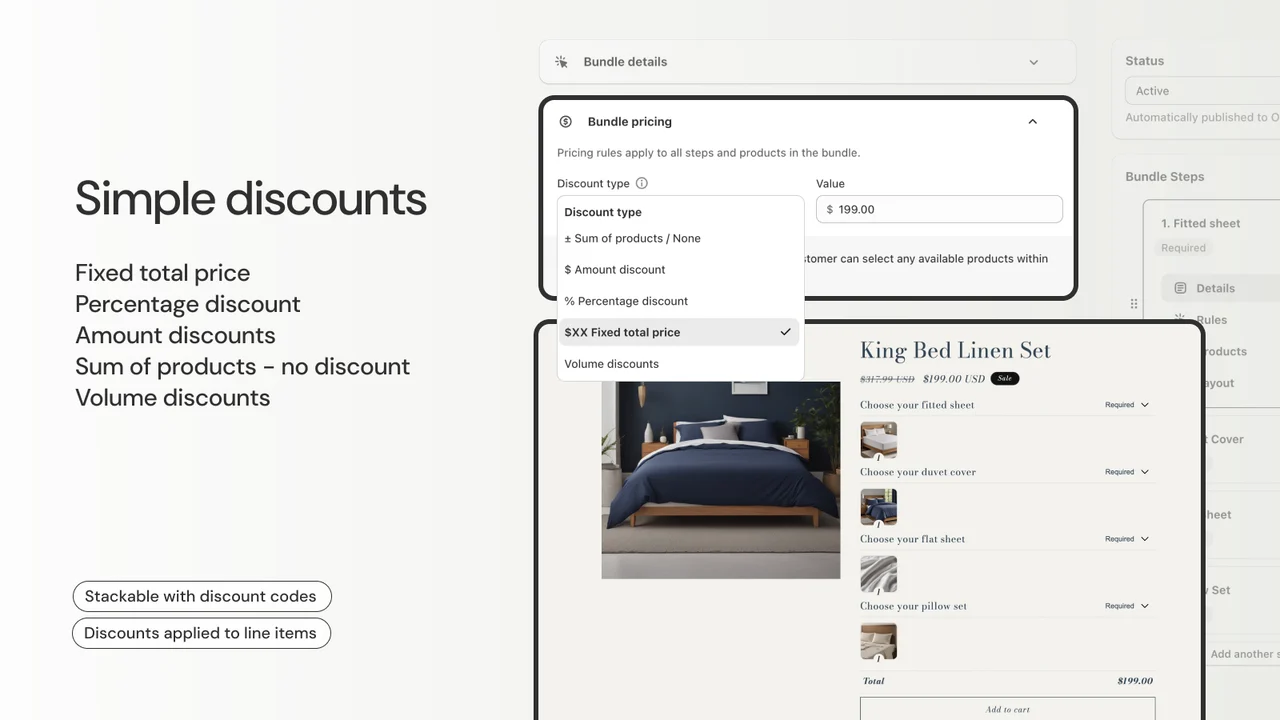
Fixed bundle price. The entire bundle costs one set number, regardless of which specific items the shopper picks. This is the simplest model to communicate — "any 6 for $30" — and works well when your component costs are similar enough that a flat price doesn't create margin problems.
Percentage or amount off. The bundle takes a discount off the sum of the individual item prices — either a set percentage or a flat dollar amount. This scales naturally with whatever the shopper picks, so higher-priced selections still carry a proportional discount.
Sum of products (no discount). The bundle simply totals the price of whatever's selected, with no automatic discount applied. This is less common for build-your-own bundles specifically, but it's available when the value proposition is convenience and personalization rather than a lower price.
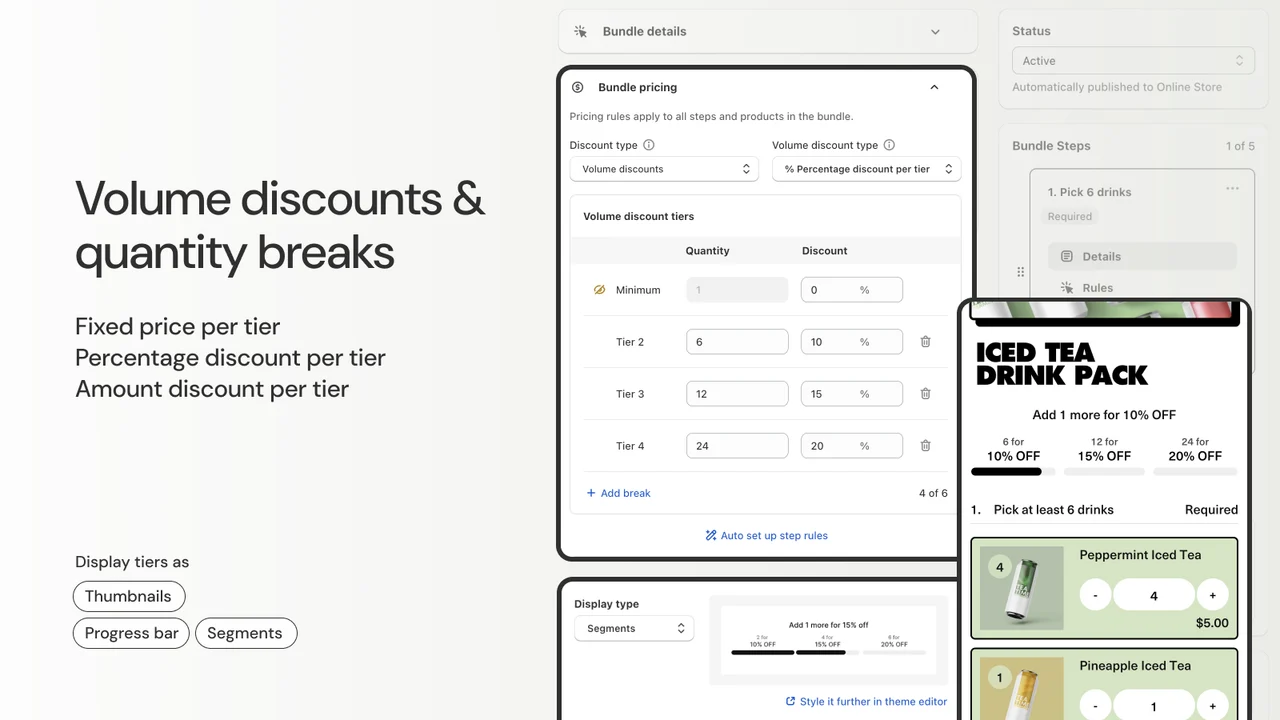
Volume discounts (tiered pricing). The discount depends on how many total items the shopper selects — for example, buy 3 and save 10%, buy 5 and save 15%. You define these as "tiers," each with its own minimum quantity and discount value (which can itself be a dollar amount, a percentage, or a fixed price for the whole bundle at that tier). Up to 5 additional tiers are supported beyond the base tier. One setup detail worth knowing: your step rules need to actually allow the shopper to select the quantities your tiers are built around — if your tiers assume up to 8 items but your step maximum caps at 6, the top tier is unreachable.
All four pricing types apply their discount directly at the line-item level rather than through a discount code, which means standard checkout discount codes still work alongside a bundle discount — something that isn't guaranteed with every bundle app on the market.
Volume discounts specifically use their own tier-based interface, shown below
FAQ: build-your-own bundles on Shopify
Do I need coding knowledge to set up a build-your-own bundle?
No. Installation and setup through Biscuits Bundles is code-free, using the theme editor's app block system rather than editing theme code directly.
Can I use Shopify's native Bundles feature without an app?
Yes, for fixed bundles and multipacks — Shopify's Bundles feature is free on every plan. It doesn't support customer-driven mix-and-match selection on its own, which is where a dedicated app becomes necessary.
Will a build-your-own bundle work with Shopify POS?
Not currently. Shopify's native Bundles feature — and by extension, apps built on it like Biscuits Bundles — only support the Online Store sales channel or a custom storefront, not POS.
Can I offer a build-your-own bundle as a subscription?
No. Shopify's native Bundles aren't compatible with subscription products or purchase options like pre-order — adding a subscription option to a bundle results in a cart error. This is a platform-level limitation, not something specific to any one bundle app.
What's the difference between item selection limits and total quantity limits?
Item selection limits control how many unique products a shopper can choose within a step. Total quantity limits control the total number of items across those selections. They're configured separately and serve different purposes — mixing them up is a common setup error.
Does the bundle discount work with regular discount codes?
Yes, when the discount is applied at the line-item level (as Biscuits Bundles does) rather than through a discount code — this generally remains compatible with standard checkout discount codes.
The best place to start
If you're testing whether a build-your-own format works for your catalogue, start with one product family and Biscuits Bundles' free plan — it runs on the same native Shopify Bundles structure as the paid tiers, so nothing needs to migrate later if you upgrade. Set one step, one pricing model, and measure how it performs before expanding to multi-step bundles or volume tiers.
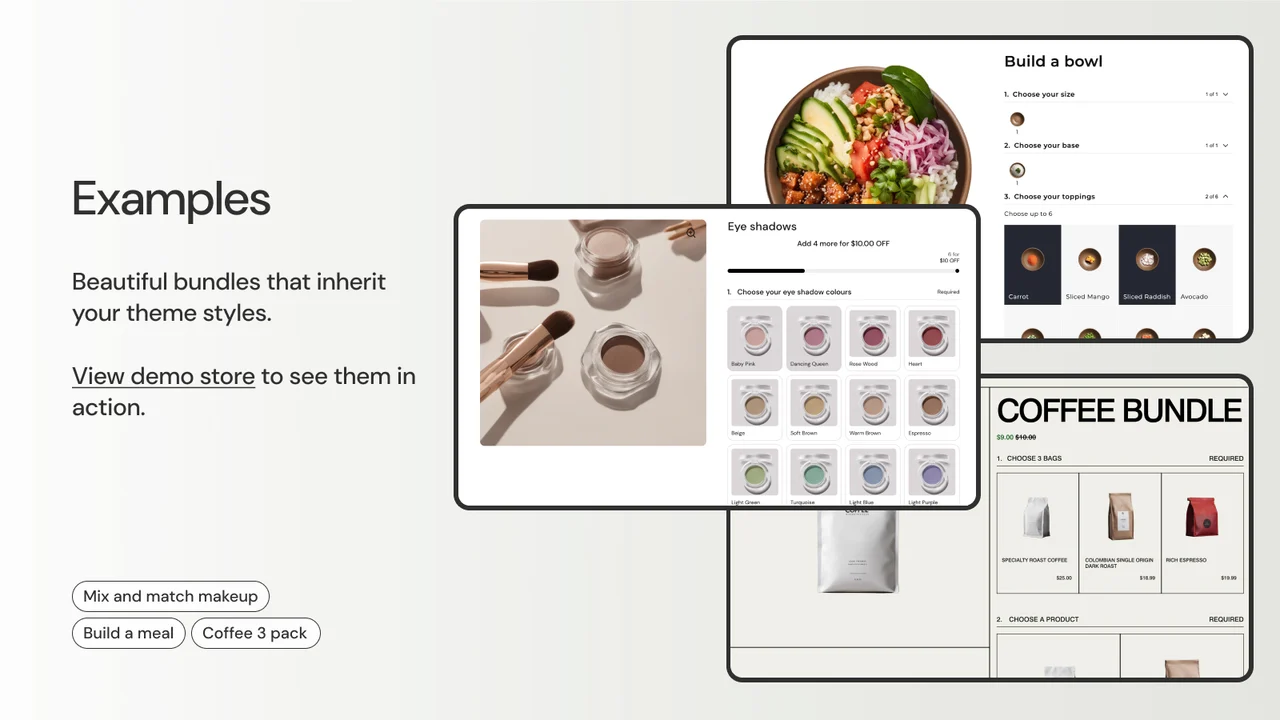
Install Biscuits Bundle Builder from the Shopify App Store or visit Biscuits Bundles to see example bundles in action.
References
- Shopify Dev Docs – About product bundles: https://shopify.dev/docs/apps/build/product-merchandising/bundles
- Biscuits Bundles Help Center – Create your first bundle: https://help.biscuitsbundles.com/en/articles/9220256-create-your-first-bundle
- Biscuits Bundles Help Center – Requirements, limitations, and compatibility: https://help.biscuitsbundles.com/en/articles/9045737-requirements-limitations-and-compatibility-for-biscuits-bundles
- Biscuits Bundles Help Center – What are the Shopify Bundles limitations?: https://help.biscuitsbundles.com/en/articles/9045731-what-are-the-shopify-bundles-limitations
- Biscuits Bundles Help Center – Volume Discounts: https://help.biscuitsbundles.com/en/articles/10598321-volume-discounts
- Biscuits Bundles Help Center – How is Biscuits Bundles different?: https://help.biscuitsbundles.com/en/articles/9045730-how-is-biscuits-bundles-different
- Biscuits Bundle Builder – Shopify App Store listing: https://apps.shopify.com/biscuits-bundles
- Biscuits Bundles – Official website: https://biscuitsbundles.com/