Setting up Videoselz
Getting Started
Videoselz adds shoppable video carousels, stories, floating (picture-in-picture) videos and fullscreen (watch page) to your Shopify storefront. Once set up, shoppers can watch videos, tap featured products, and add to cart without leaving the video.
Setup takes three steps: add the app block to your theme, upload videos and tag products, then create playlists for each placement. If you keep Add videos to product playlist checked while tagging, you can skip playlist setup for product pages — but you still need a playlist for your homepage (and for collection pages when you use that block).
Before you begin
- Videoselz requires a Shopify Online Store 2.0 theme (e.g., Dawn, Sense, Craft, or any theme released after 2021). If you're on a vintage theme, contact support for manual integration options.
- The app must be installed from the Shopify App Store before proceeding.
Step 1: Add the app block to your theme
The app block is what makes videos appear on your storefront. You add it separately for each page type — homepage, product pages, and collection pages — depending on where you want videos to show.
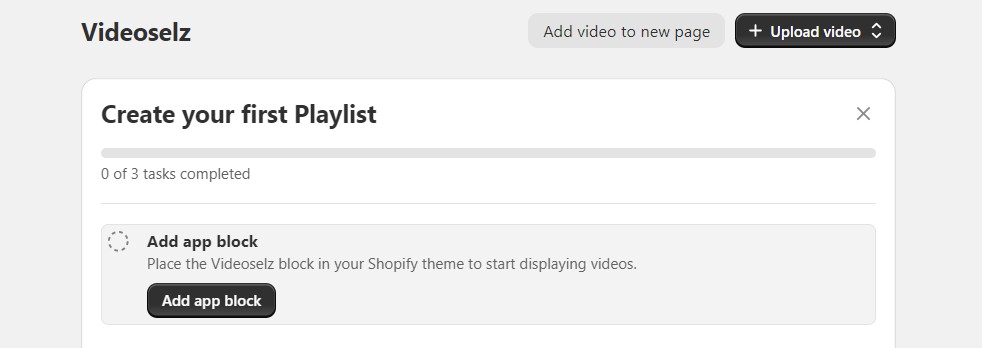
- In Videoselz, click Add app block from the home onboarding checklist.
-
A panel opens with three page types:
Page type What it does Homepage Shows videos on your store's main page Product pages Displays videos on individual product pages Collection pages Adds videos to collection listing pages 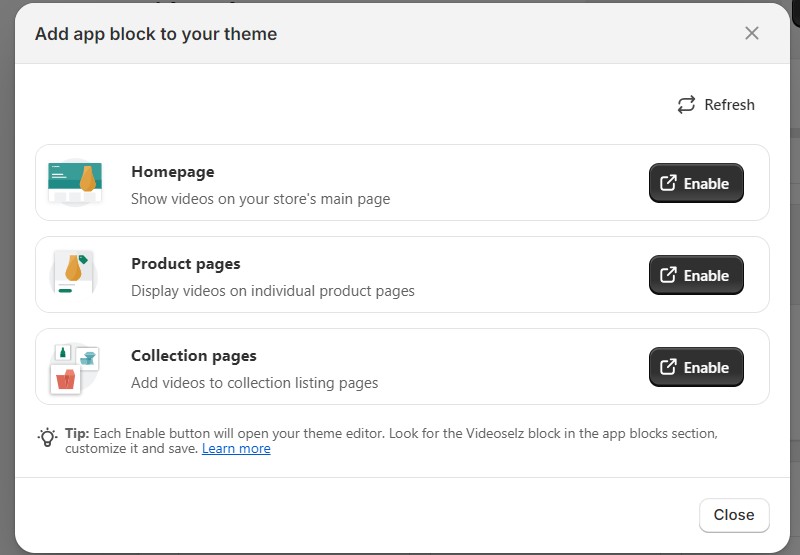
-
Click Enable next to each page type you want to activate. Each button opens your Shopify theme editor in a new tab with the Videoselz block pre-loaded. Videoselz always opens your store's currently published (live) theme — the one customers see.
Optional — adding the block to a different theme
Use this only if the carousel should live on a draft or unpublished theme, or any theme other than the one Enable opens.- In Shopify admin, go to Online Store → Themes.
- On the theme you want, click Customize.
- Use the top bar to open the matching template (Home page, a product page, or a collection page).
- Click Add block (or Add section, depending on your theme) where the carousel should appear, then under Apps select Videoselz.
- Choose your carousel in the block settings if asked, then click Save.
-
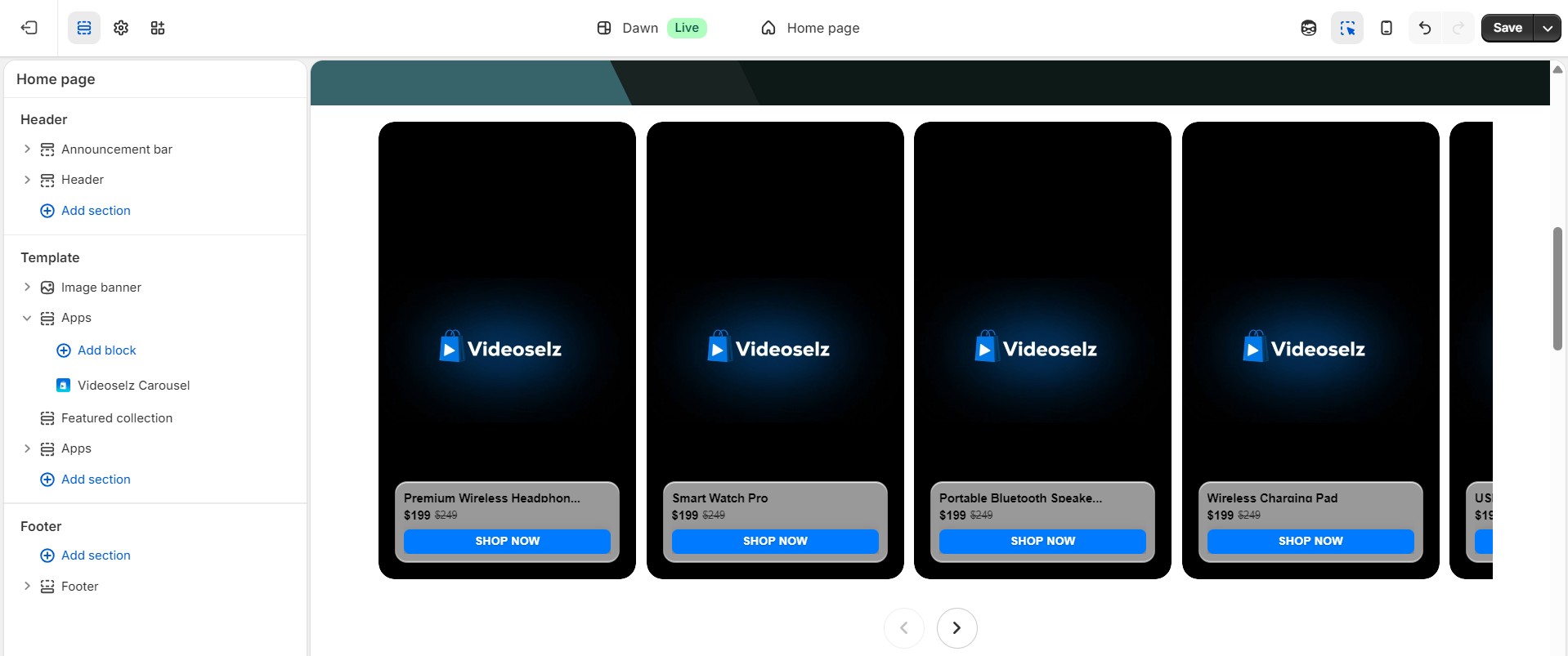
In the theme editor, locate the Videoselz block in the App blocks section. Customize it as needed, then click Save.
-
Return to Videoselz and click Refresh in the panel to confirm the block is active. Enabled page types show ✓ Active.
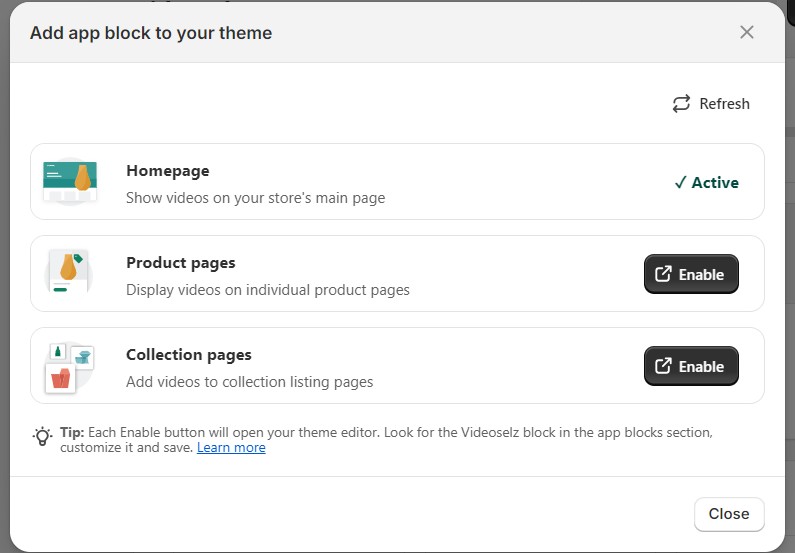
Tip: You don't need to enable all three page types at once. You can add more later from the same panel.
Step 2: Upload videos and tag products
All videos live in the Video Library. Tagging products is what makes a video shoppable — tagged items appear as tappable product cards so shoppers can view details or add to cart from the player.
Upload a video
-
Navigate to Library in the left sidebar.
-
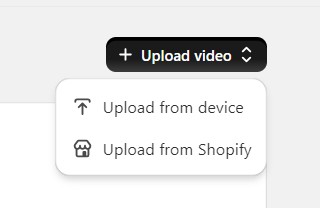
Click Upload video and choose one of two methods:
- From device — drag and drop files, or click to browse. Multiple files can be uploaded at once. Use MP4 or MOV (H.264 or H.265).
- From Shopify — browse and import videos already in your Shopify Files (MP4 or MOV).
-
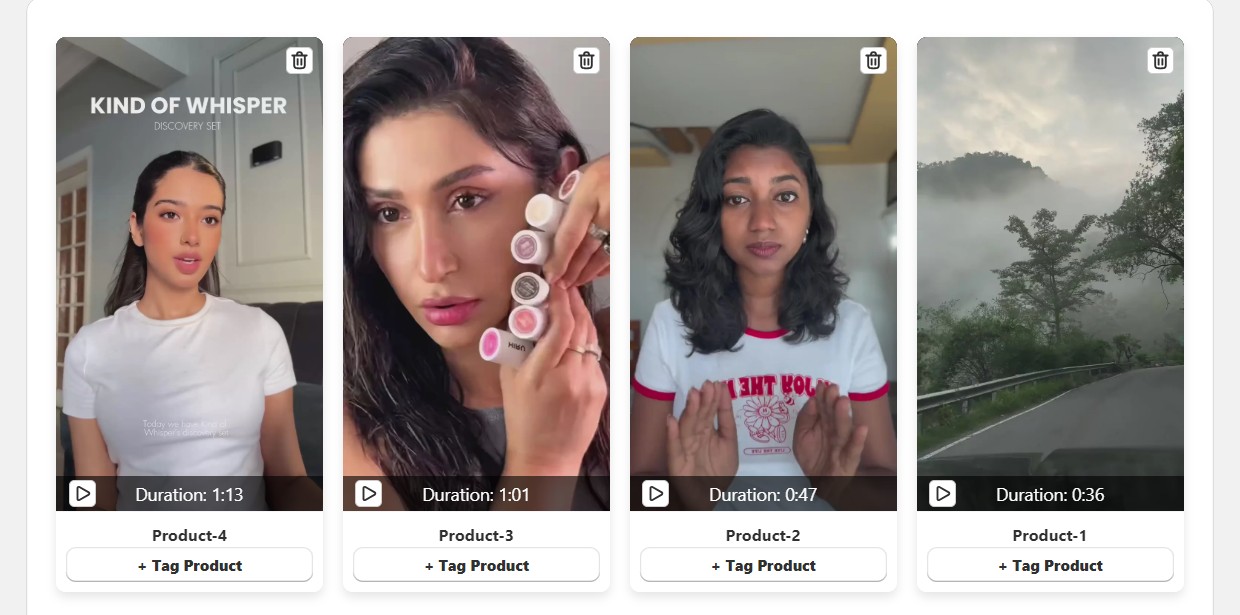
Videos process automatically. Once ready, they appear in the library with a thumbnail and duration.
Tag products to a video
-
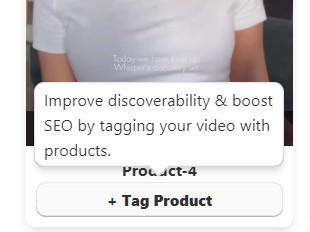
Click Tag Products on any video in the library.
-
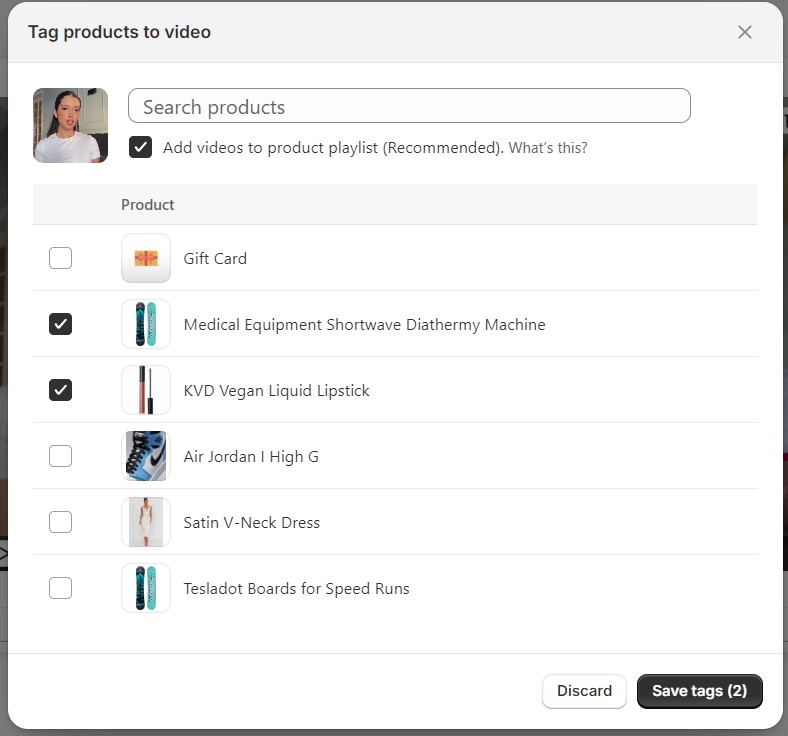
Search for products by name and select the ones featured in the video.
-
Keep Add videos to product playlist (Recommended) checked (it's on by default). That setting is what lets those product pages show this video. With it checked, you can skip Step 3 entirely for product pages — Videoselz attaches the video to each tagged product's playlist automatically.
-
Click Save. Tagged products will appear as product cards alongside the video in your storefront.
A video without tagged products will still play in the carousel — it just won't show product cards.
If Videoselz is only on product pages and you always leave Add videos to product playlist checked, you can skip Step 3 entirely. For homepage or collection placements, you still create playlists below.
Step 3: Create a playlist
For product pages, this step is optional when Add videos to product playlist was checked while tagging — you only need it there if you unchecked that option and want to build or edit the product playlist yourself.
Homepage and collection pages always need a playlist you create here; the tagging checkbox does not replace that.
A playlist is a collection of videos assigned to a specific page. Each page can have one playlist.
-
Navigate to Video Pages → Create playlist (or click Create Playlist from the home checklist).
-
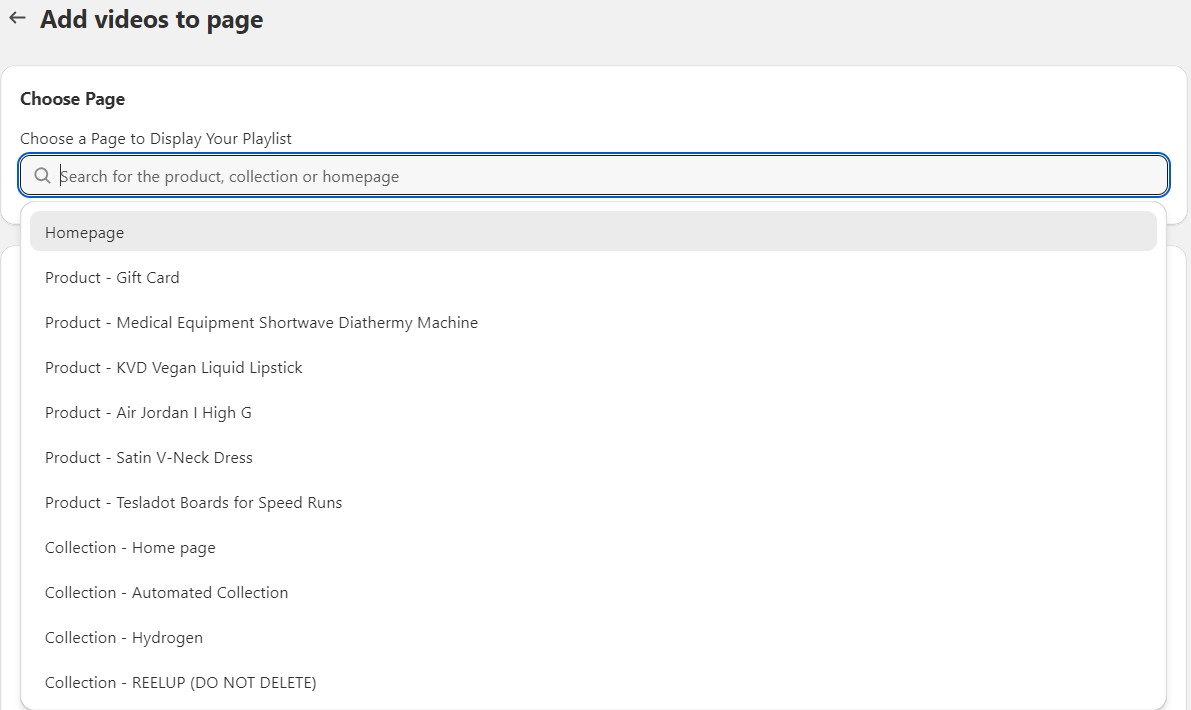
In the Choose page field, select where this playlist will appear:
- Homepage
- A specific product page (search by product name)
- A specific collection page (search by collection name)
-
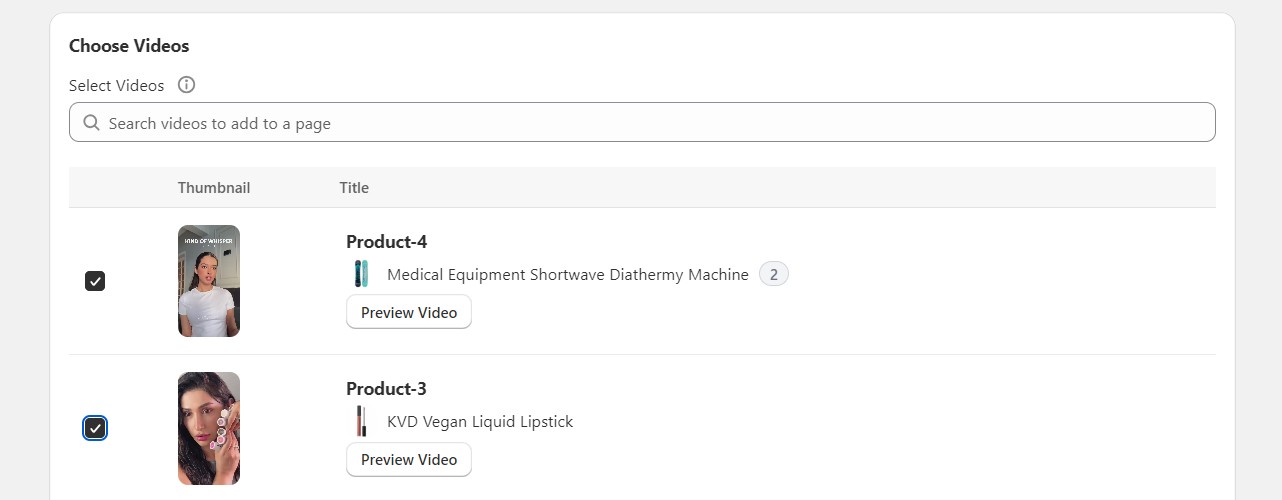
In the Select videos section, check the videos to include. At least one video is required.
-
Click Save playlist.
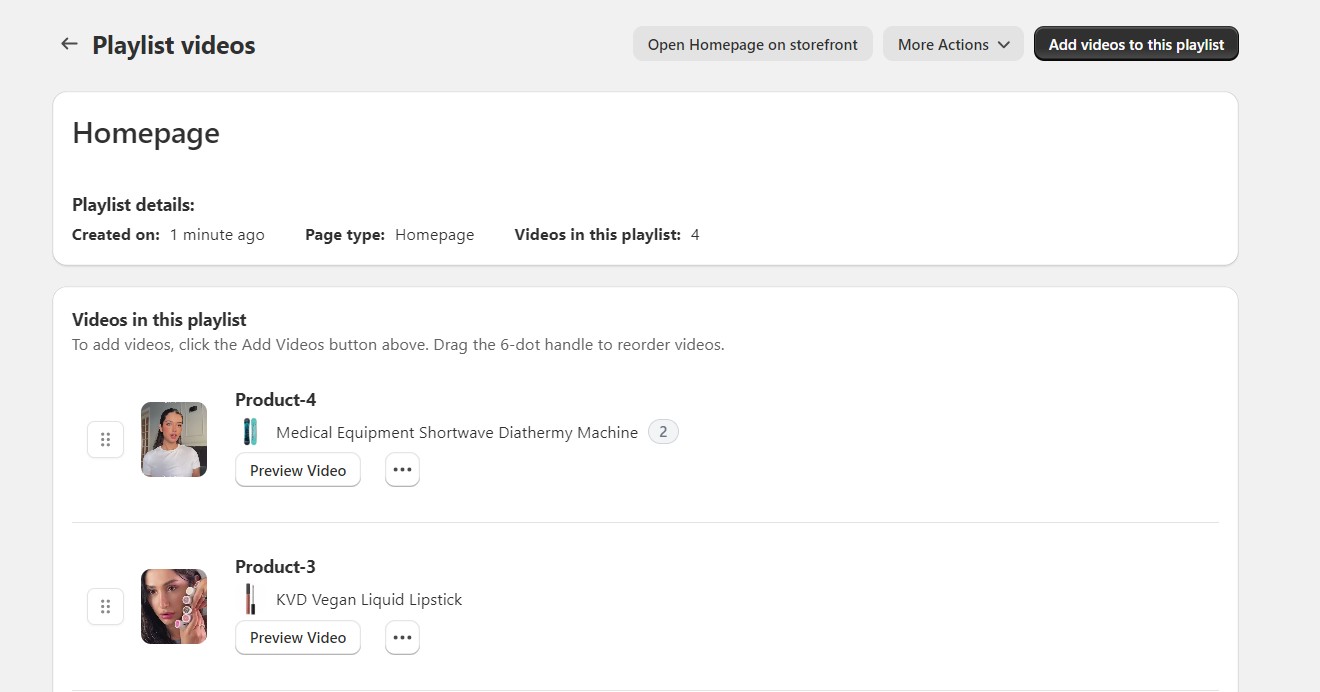
After saving, you land on the Edit playlist page where you can reorder videos by dragging, add or remove videos, and click Open in Storefront to see the carousel live.
What's next
Once the app block is active, your videos are tagged, and every placement you use has a playlist (or product playlists from tagging), your carousel is live. From here:
- Advanced rules — In Video Pages, you can run complex playlist rules so the same videos show for all products in a collection (and other conditions), without setting up each product one by one.
- Carousel setup — create and manage your carousels and playlists, choose videos, and configure layout and playback for the storefront.
- Settings → Carousel — customize the carousel appearance: play button style, product card colors, captions, vignette, shadows, fonts, and custom CSS.
- Settings → General — configure price display (decimals, compare-at pricing, discount badges) and the Shop Now button color.
- Settings → Quickview — adjust the product card that appears when a shopper taps a tagged product.
- Analytics — track video views and engagement across your playlists.
Troubleshooting
The carousel isn't showing on my storefront. Confirm the app block is enabled for that page type (Home → Add app block → check for ✓ Active). Also verify a playlist has been created and assigned to that page.
I enabled the app block but the carousel is empty. A playlist must be assigned to the page. Navigate to Video Pages → Create playlist and assign videos to the page.
I'm on a vintage (non-2.0) theme. Vintage themes don't support app blocks. Email help@videoselz.com for manual integration guidance.
Resources
Get your free trial:
Unlock all customization options and more features with a 15-day free trial of the Pro Plan—start today and enjoy increased social proof.
See our latest updates:
Check our changelog to discover newly launched features and improvements. Stay in the loop! Follow Videoselz on LinkedIn.
Ready to add shoppable videos to your store?
Get Videoselz on Shopify