Onboarding: 5 steps to your first shoppable video
What you will learn
By the end of this guide you will have a working shoppable video carousel on your Shopify storefront — complete with tagged products that your customers can browse and add to cart directly from the video.
The entire process takes about 10 minutes.
Before you begin
- A Shopify store on any paid plan (Basic, Shopify, Advanced, or Plus).
- At least one product published to your Online Store sales channel.
- A short video file as MP4 or MOV (H.264 or H.265). Product demos, unboxings, and UGC clips all work well.
Tip: Videos between 15 and 60 seconds tend to perform best for product discovery. Keep them vertical (9:16) for the most engaging mobile experience.
Step 1 — Install Videoselz
- Open the Videoselz listing on the Shopify App Store.
- Click Add app.
- Review the requested permissions and click Install app.
After authorization completes, Shopify redirects you to the Videoselz dashboard inside your admin panel. You can always return to it from Apps > Videoselz.
Verify it worked
Navigate to Apps > Videoselz in your Shopify admin. You should see the dashboard home screen with an onboarding checklist. If the app does not appear, refresh your browser.
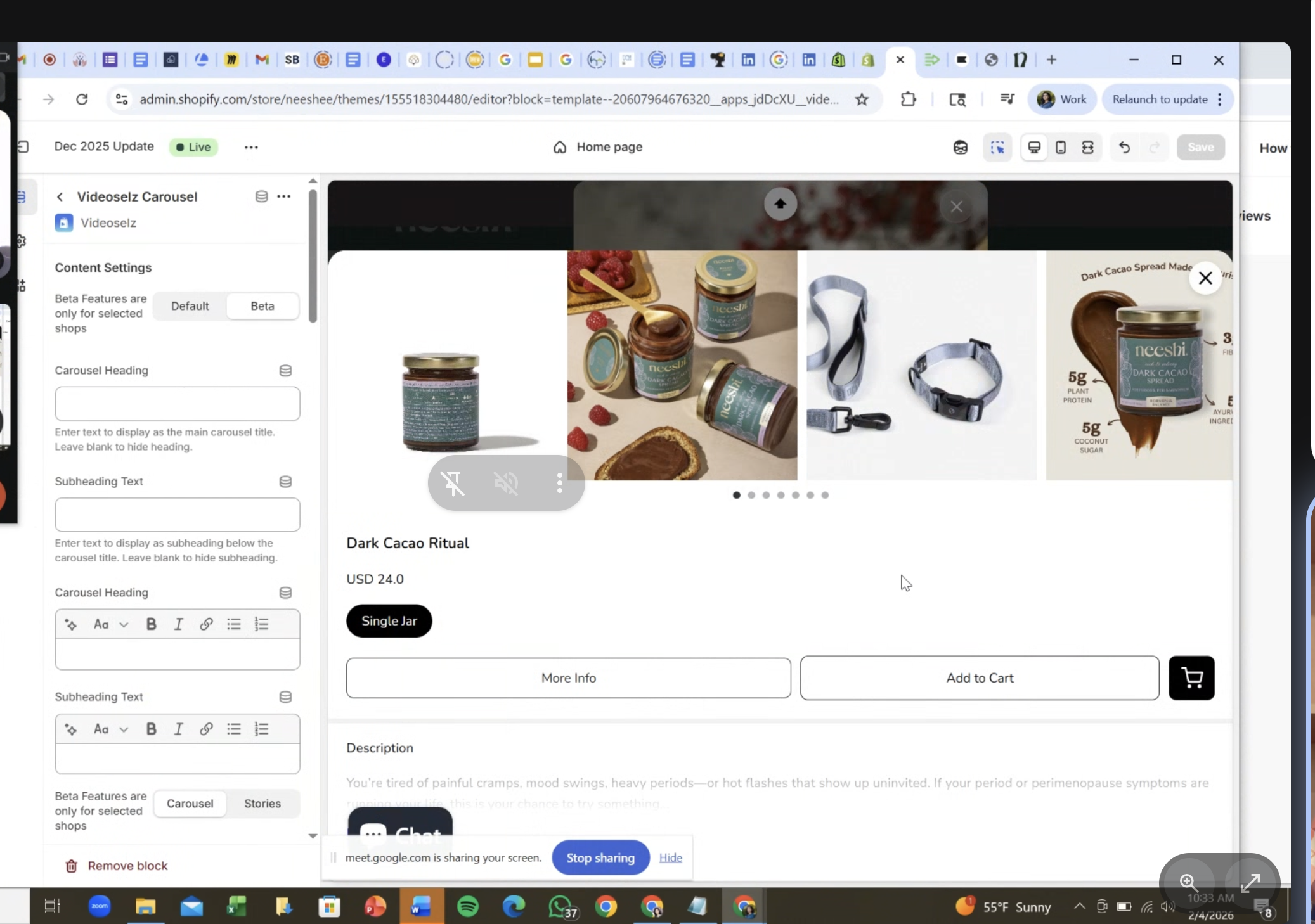
Step 2 — Upload your first video
- In the Videoselz dashboard, go to Videos (sometimes labeled Library).
- Click Upload and select your video file. You can drag and drop or browse your files.
- Wait for the upload and processing to finish — this usually takes a few seconds.
Your video now appears in the library with a thumbnail preview.
Tip: Upload the best-performing content you already have. Repurposed Instagram Reels, TikToks, or product walkthrough clips are a great starting point.
Supported formats
| Format | Codec |
|---|---|
| MP4 | H.264 / H.265 |
| MOV | H.264 / H.265 |
Step 3 — Tag products to your video
Product tags are what make a video shoppable. When a customer taps a tagged product, they see the product name, price, and an Add to Cart button — without leaving the video.
- Click the video thumbnail in your library to open it.
- Click Tag Products.
- Search for a product from your Shopify catalog and select it.
- Repeat for any additional products featured in the video.
- Click Save.
Tagged products sync with Shopify in real time. If you update a price or mark a product as out of stock, the video overlay reflects the change automatically.
Verify it worked
Open the video detail screen. Each tagged product should appear in a list below the video player with its current price and inventory status.
Step 4 — Create a carousel
A carousel is the container that displays one or more shoppable videos on your storefront.
- Go to Carousels in the Videoselz dashboard.
- Click New Carousel.
- Give it a descriptive name (for example, "Homepage hero" or "Best sellers").
- Select the video you uploaded in Step 2. You can add more videos later.
- Configure the basic appearance settings:
| Setting | What it controls | Recommended default |
|---|---|---|
| Layout | Horizontal scroll or grid | Scroll |
| Autoplay | Start playing when visible on screen | On |
| Mute by default | Begin playback without sound | On |
| Cards per row | Visible thumbnails on desktop (1–6) | 3–4 |
| Corner radius | Rounded corners on video cards (px) | 8 |
- Click Save.
Verify it worked
Your new carousel appears in the carousel list. Click it to confirm the selected videos and settings are correct.
Tip: Start with the defaults and refine after you see how customers interact with the carousel. The Carousel setup guide covers every configuration option.
Step 5 — Publish the carousel to your storefront
This is where your shoppable video goes live. The steps depend on your theme type.
Online Store 2.0 themes (recommended)
Most modern Shopify themes support app blocks, which means you can add the carousel with drag-and-drop — no code required.
- In your Shopify admin, go to Online Store > Themes and click Customize on your active theme.
- Navigate to the page where you want the carousel (for example, your homepage).
- Click Add section (or Add block inside an existing section).
- Select the Videoselz app block from the list.
- Choose the carousel you created in Step 4.
- Drag the block to position it on the page.
- Click Save.
Vintage themes
If your theme does not support app blocks, you can embed the carousel with a Liquid snippet.
- In the Videoselz dashboard, open your carousel and click Embed Code.
- Copy the snippet.
- In your Shopify admin, go to Online Store > Themes > Actions > Edit code.
- Open the template file for the page you want (for example,
index.liquidfor the homepage). - Paste the snippet where you want the carousel to appear.
- Click Save.
{% render 'videoselz-carousel', id: 'YOUR_CAROUSEL_ID' %}
Verify it worked
Open your storefront in a new browser tab (or use the Preview button in the Theme Customizer). You should see your carousel with the video playing. Click a tagged product to confirm the product card appears with pricing and an Add to Cart button.
You are live
Your first shoppable video is now on your storefront. Here is what to explore next:
- Track performance — Open the Analytics dashboard to monitor views, product clicks, and add-to-cart conversions.
- Customize the player — Adjust fullscreen behavior, progress bars, and branding in the Video players guide.
- Fine-tune appearance — Match fonts, colors, and product card styles to your brand in Settings.
- Add more carousels — Create separate carousels for product pages, collection pages, or landing pages. See the Embedding guide for placement strategies.
- Optimize load times — Review the Performance tips to keep your storefront fast.
Resources
Get your free trial:
Unlock all customization options and more features with a 15-day free trial of the Pro Plan—start today and enjoy increased social proof.
See our latest updates:
Check our changelog to discover newly launched features and improvements. Stay in the loop! Follow Videoselz on LinkedIn.
Ready to add shoppable videos to your store?
Get Videoselz on Shopify