Adding Videoselz widgets in Vintage themes
Vintage themes are no longer available in the Shopify Theme Store and do not include the advanced features of Online Store 2.0. However, you can still use them to showcase Videoselz video carousels by adding the installation code directly to your theme files.
Check if you're using a Vintage theme
Using the Shopify theme editor
- From your Shopify admin, go to Online Store → Themes.
- Find the theme you want to edit and click Edit theme.
- On the left panel, inside Template, click + Add section.
- Go to the Apps tab.
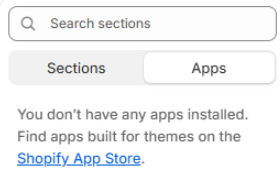
- Inside the Apps tab, if you don't see any blocks and see "You don't have any apps installed. Find apps built for themes on the Shopify App Store", it means you're using a Vintage theme.
Using the Shopify code editor
- From your Shopify admin, go to Online Store → Themes.
- Click the 3-dot icon (...) on the right of the theme you want to edit and select Edit code.
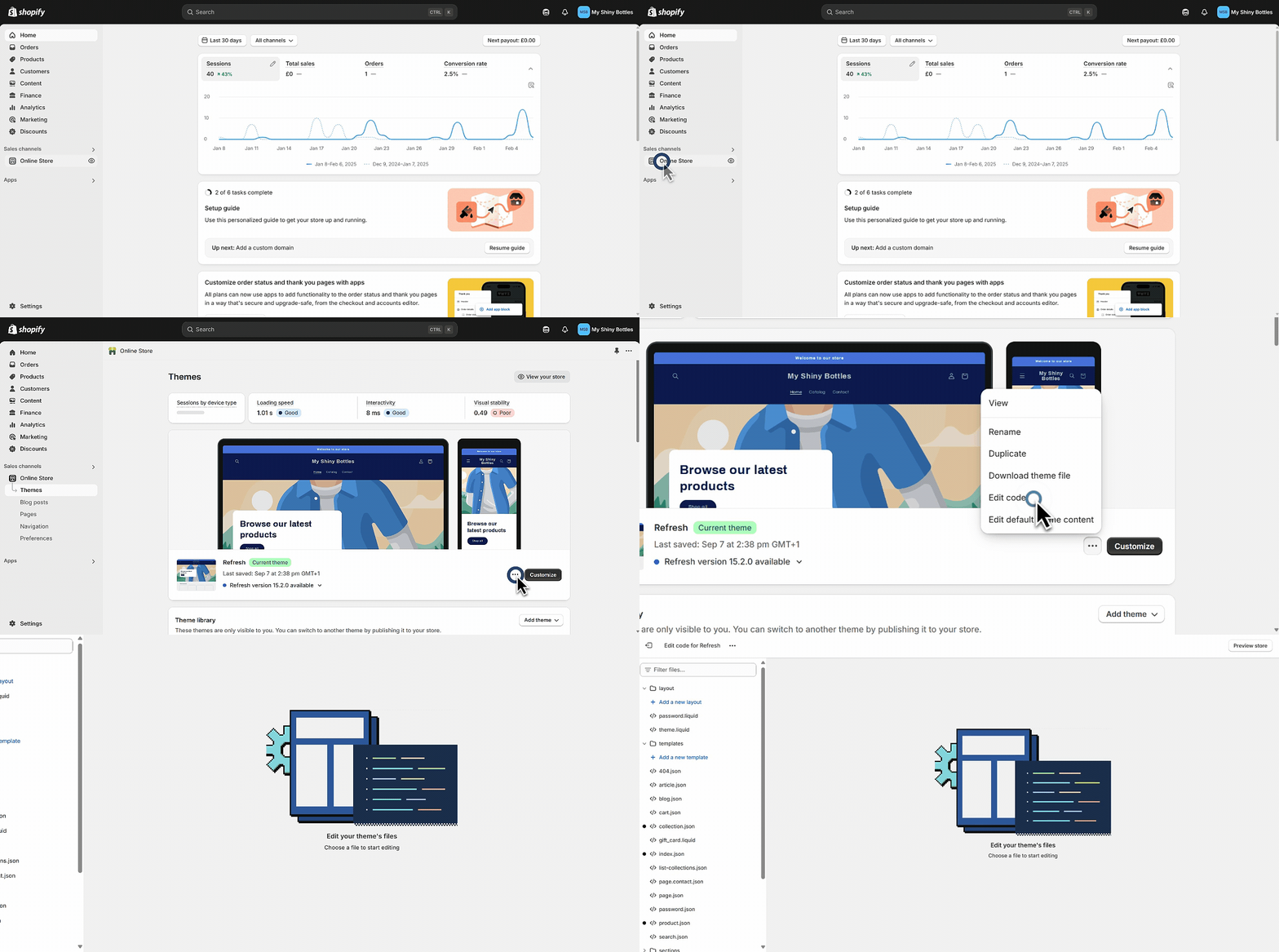
- Open the templates folder.
- Scroll down to find index.
If your home page template is index.liquid, you're using a Vintage theme. If your home page template is index.json, you're using an Online Store 2.0 theme.
Add Videoselz widgets in Vintage themes
Step 1: Enable the Videoselz Carousel app embed
- From your Shopify admin, go to Online Store → Themes.
- Find the theme you want to edit and click Edit theme.
- From the menu on the top left, click the App embeds icon (the third icon).
- Enable the Videoselz app embed.
- Click Save in the top right.
Step 2: Add the installation code
-
From your Shopify admin, go to Online Store → Themes.
-
Find the theme you want to edit.
-
Click the 3-dot icon (...) and select Edit code.
-
Find your homepage / collection / product section file:
- Open the templates folder.
- Scroll down to find and open
product.liquid(products),index.liquid(homepage) orcollection.liquid(collections). Then follow the appropriate instructions below.
Products: In
product.liquid, look for a line that starts with{% section ... %}— for example,{% section 'product-template' %}.Homepage: In
index.liquid, look for the{{ content_for_index }}line.Collections: In
collection.liquid, look for a line that starts with{% section ... %}— for example,{% section 'collection-template' %}.- Note the section name inside the quotes (e.g.
product-template). - Go to the sections folder and open the corresponding file (e.g.
product-template.liquid) if it exists. If you don't see the file, you can update the template file above with the code below.
-
Find the code under which you want to place your widget. Under that code, add this code for the Video Carousel:
<!-- Start of Videoselz video carousel code -->
{%- assign full_money = 1 | money -%}
{%- assign money_without_currency = 1 | money_without_currency -%}
{%- assign currency_symbol = full_money | remove: money_without_currency | strip -%}
{%- capture vdslz_liquid_settings -%}
{
  "designMode": false,
  "previewMode": "false",
  "product": {{ product | json }},
  "collection": {{ collection | json }},
  "template": {{ template.name | default: request.page_type | json }},
  "shopCurrency": {{ currency_symbol | json }},
  "cartCurrencySymbol": {{ cart.currency.symbol | default: currency_symbol | json }},
  "marketCurrencySymbol": {{ localization.market.currency.symbol | default: currency_symbol | json }},
  "countryCode": {{ localization.country.iso_code | json }},
  "shopId": {{ shop.id | json }},
  "carouselSettings": {}
}
{%- endcapture -%}
<div
  id="videoselz-carousel-app"
  data-vdslz-source="legacy-embed"
  data-liquid-settings="{{ vdslz_liquid_settings | strip | escape }}"
></div>
<!-- End of Videoselz video carousel code-->
- Click Save in the top right.
Troubleshoot
My theme doesn't have the index.liquid file.
If you can't find an index.liquid file in your theme, check if you see an index.json file instead. If your theme has an index.json file, you're using an Online Store 2.0 theme, which allows you to install the widget using app blocks instead. Follow the steps in the Setting up Videoselz guide to install the widget using app blocks.
Resources
Get your free trial:
Unlock all customization options and more features with a 15-day free trial of the Pro Plan—start today and enjoy increased social proof.
See our latest updates:
Check our changelog to discover newly launched features and improvements. Stay in the loop! Follow Videoselz on LinkedIn.
Ready to add shoppable videos to your store?
Get Videoselz on Shopify