How to add the Video Widget on your product / collection / homepage
Overview
Use this guide if you prefer to add the Videoselz video widget from the Shopify theme editor instead of using Enable in the Videoselz app (which opens the editor for you). You repeat the same pattern for product, collection, and home templates — only the template you open in the top bar changes.
Step 1: Add the Videoselz block
Add the Videoselz block on each template where you want the carousel (product, collection, and/or home). The steps below use the product template as an example — substitute the template in the dropdown for collection or homepage when needed.
Product page (Default product)
-
From your Shopify admin, go to Online Store → Themes.
-
Find the theme you want to edit and click Customize.
-
At the top of the theme editor, open the template dropdown in the center.

-
Select Products, then select Default product (or the specific product template you use).

-
In the left panel, under the template, click Add section (or Add block if your theme adds the widget as a block inside an existing section — use whichever your theme offers for app content).
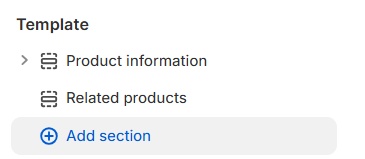
-
Open the Apps tab.
-
Select the Videoselz block (video widget).
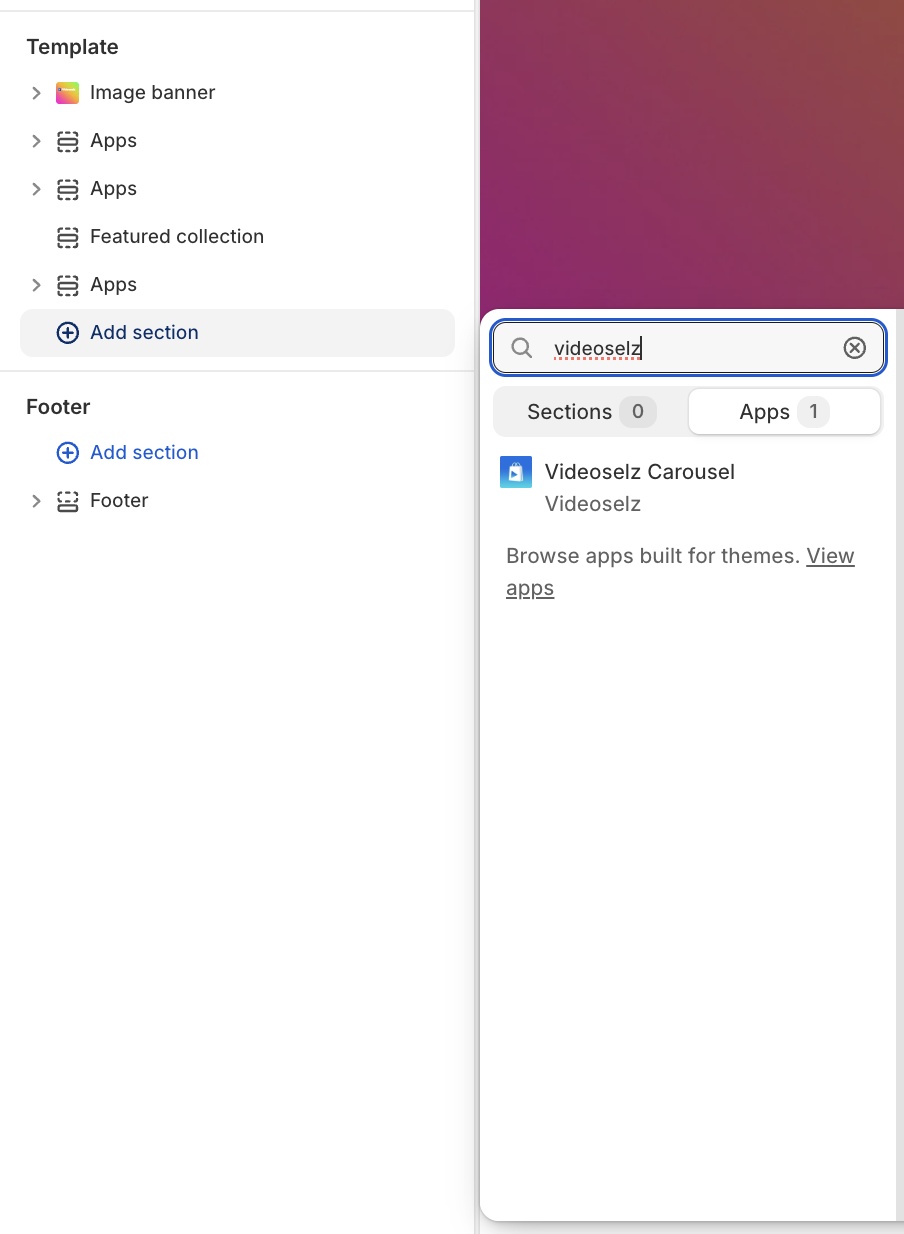
-
(Optional) Hover over the block, hold the six-dot drag handle (⋮⋮), and drag up or down to change its position.
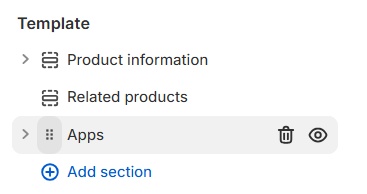
-
In the block settings, choose the look and feel you want on this template.
-
Click Save in the top right.
Collection page
Repeat Step 2, but in the template dropdown choose Collections → Default collection (or your active collection template), then add the Videoselz block from the Apps tab and Save.
Homepage
Repeat Step 2, but in the template dropdown choose Home page / Index (wording depends on your theme), then add the Videoselz block from the Apps tab and Save.
After you save
Return to Apps → Videoselz and use Add app block → Refresh if you use the in-app checklist, so Videoselz can detect that the block is active on that page type.
For playlists and which videos appear where, see the Introduction guide.
Resources
Get your free trial:
Unlock all customization options and more features with a 15-day free trial of the Pro Plan—start today and enjoy increased social proof.
See our latest updates:
Check our changelog to discover newly launched features and improvements. Stay in the loop! Follow Videoselz on LinkedIn.
Ready to add shoppable videos to your store?
Get Videoselz on Shopify